Chassis
The Device Manager Linux Deserves#
Windows® has Device Manager. macOS® has System Information. Linux has GNOME® Settings, KDE® Info Center, or the terminal with lspci, lsusb, and lsblk. GNOME and KDE are read-only and leave out the details that matter: driver status, drive health, and the ability to actually do something about what you find. The terminal can do more, but managing drivers by hand is slow and error-prone.
Chassis (/ˈtʃæsi/) is a full device manager for Linux. See all your hardware in one place, dig into the details, manage drivers, check drive health, and more, all without touching the terminal.
Chassis is designed to feel like a natural part of the GNOME desktop, so it looks and behaves like the rest of your Linux system instead of a tool ported in from somewhere else.
How It Works#
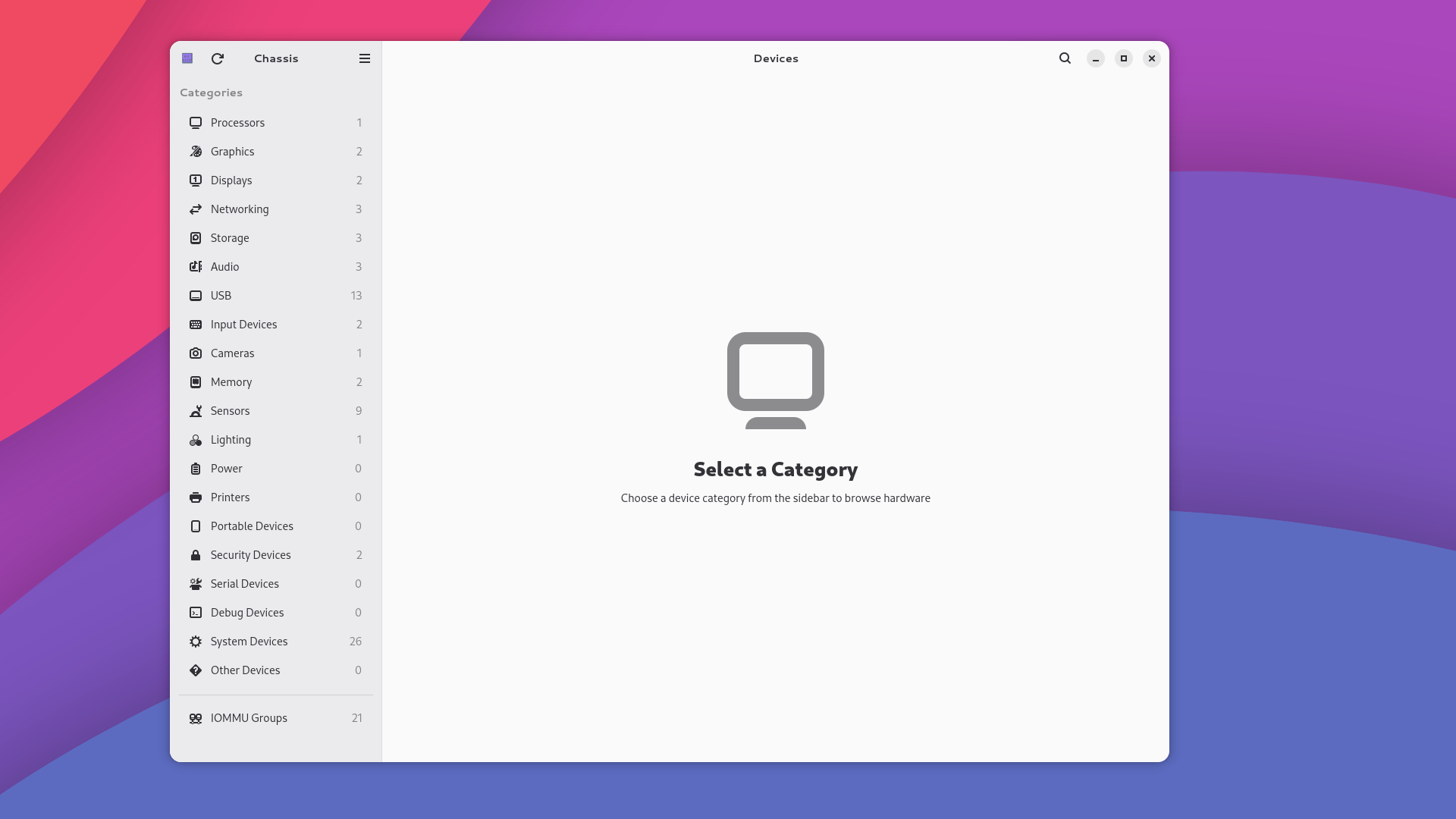
Chassis organizes every device in your system into clear categories: display adapters, network controllers, storage, audio, USB, wireless, cameras, serial ports, and more. Click on any device to see its full details, including what driver it’s using, what resources it has, and what state it’s in. If you need to change a driver or troubleshoot a device, you can do it right from the app.
Key Capabilities#
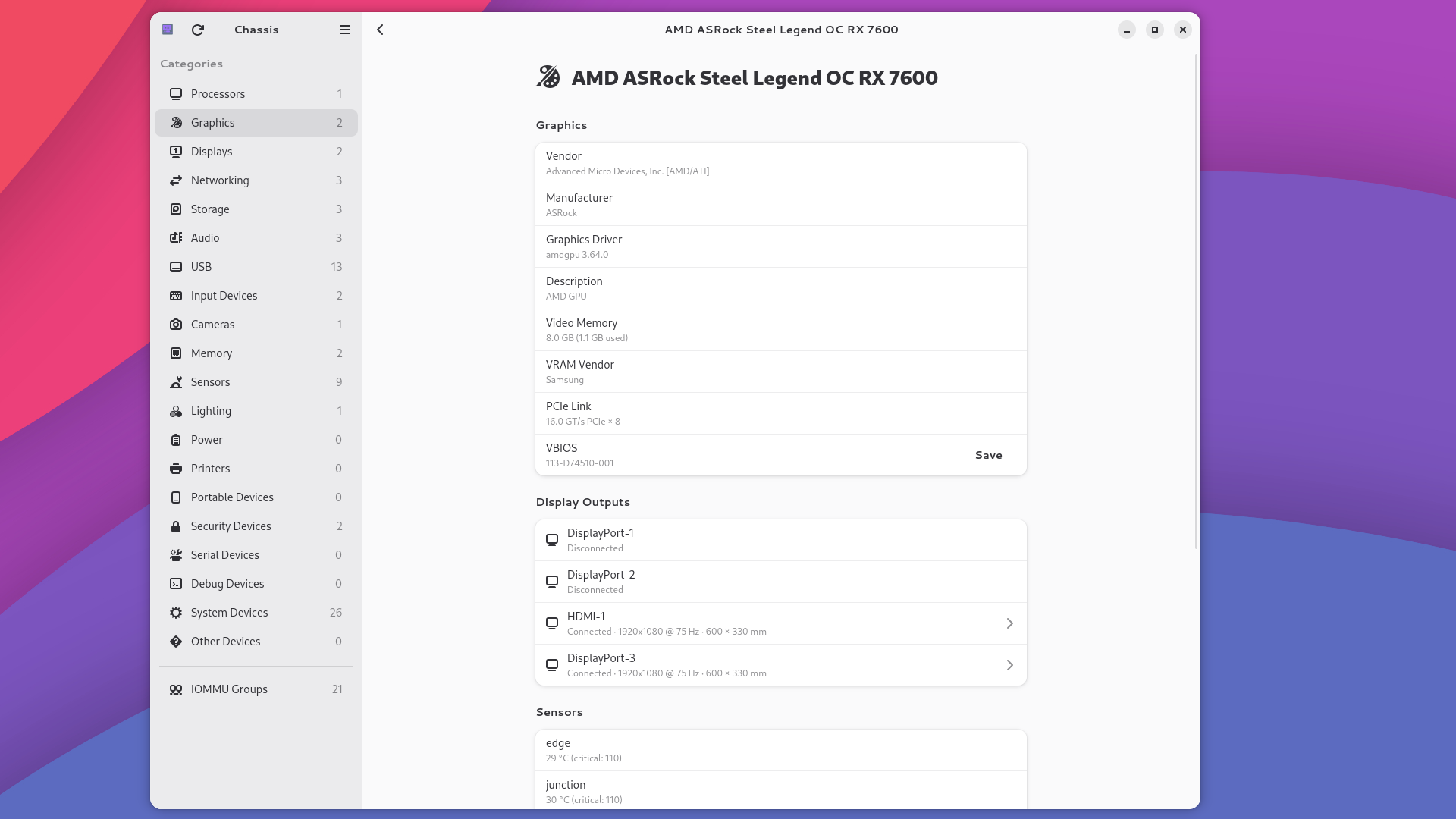
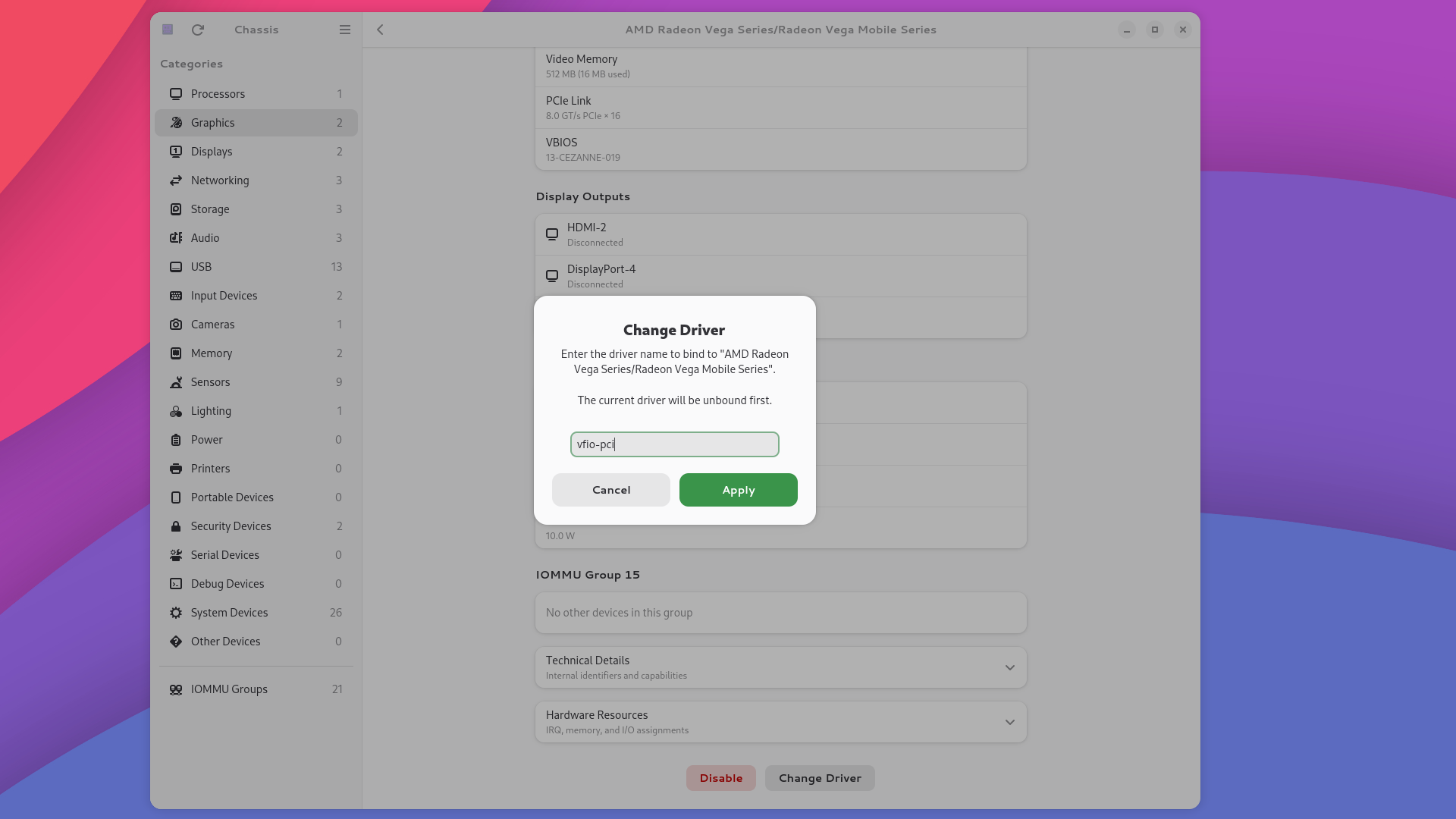
GPU and Display Details: See your graphics card’s driver, available memory, clock speeds, and which monitors are plugged into which GPU, with resolution and refresh rate for each.
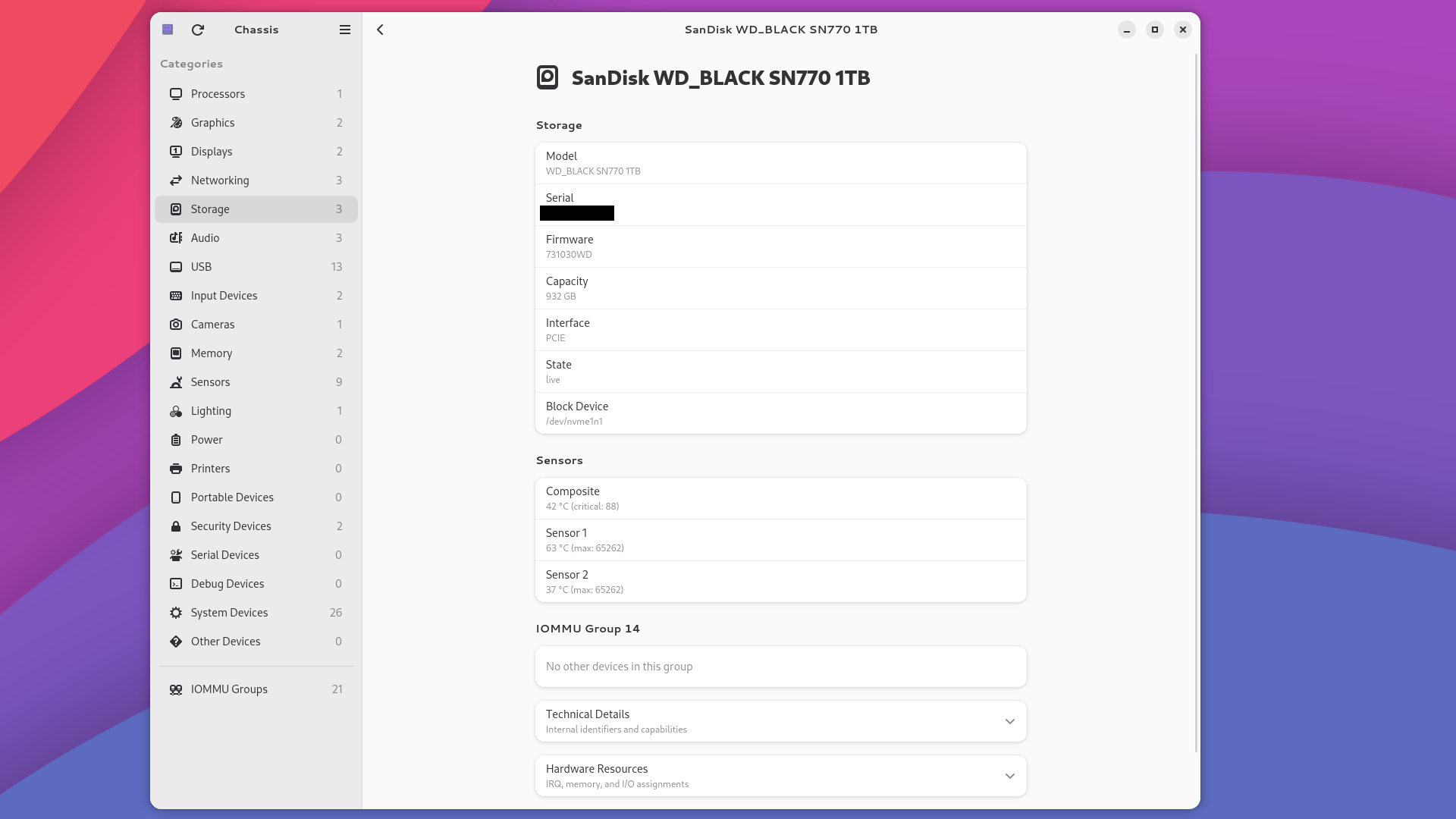
Storage Drive Health: Check the health of your SSDs, NVMe drives, and hard drives. See how much life is left, whether there are any errors, and monitor temperature in real time.
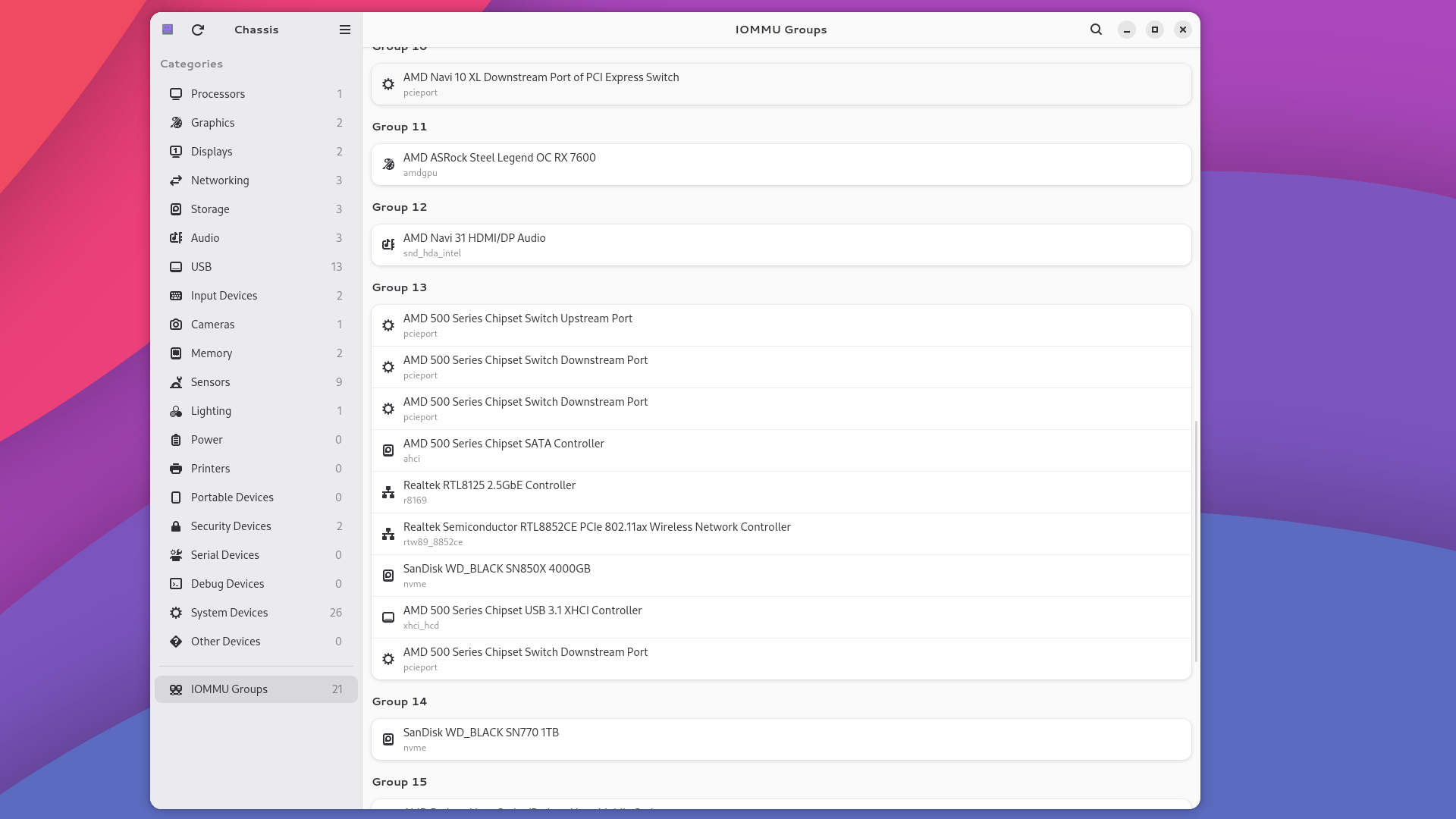
- IOMMU Group Browser: See how your hardware is grouped for use with virtual machines. If you’re setting up GPU passthrough, this is the first thing you need to check.
Driver Management: Enable, disable, or change the driver for any device directly from the app. Chassis handles it with confirmation dialogs and safety checks, no terminal commands required. Requires the optional system service, which Chassis will offer to install on first launch.
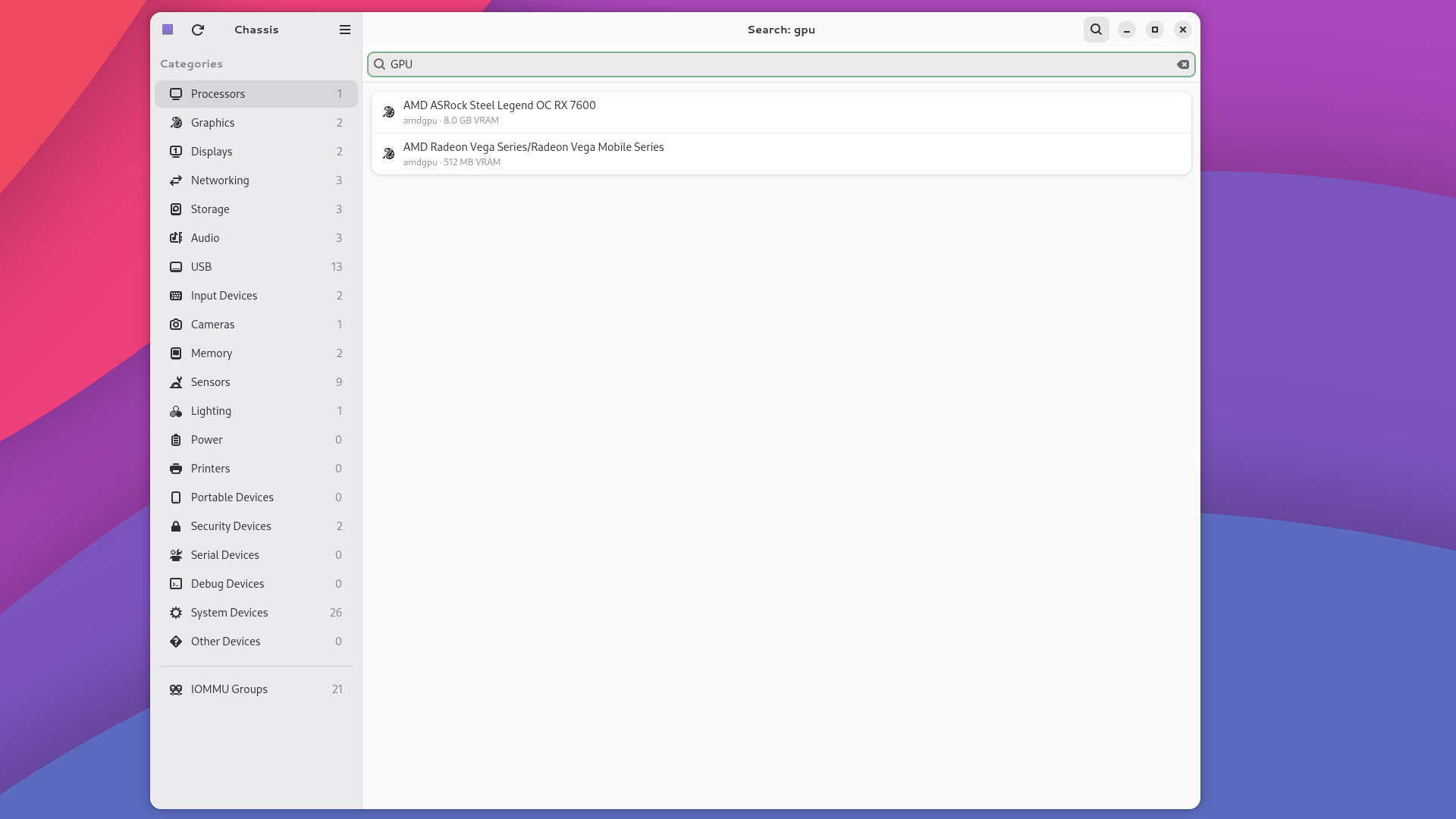
Search: Find any device instantly by typing what you’re looking for. Search “GPU” to see all your graphics cards, or “ESP32” to find a plugged-in dev board. The list filters in real-time as you type.
Hotplug Detection: Plug in a USB device, dock, or adapter and Chassis updates automatically. No manual refresh needed.
Hardware Resources: Chassis also exposes low-level details like IRQ assignments, memory-mapped regions, and I/O port ranges for when you need them.
Screenshots#
How Chassis Compares#
| Feature | Chassis | Windows Device Manager | macOS System Information | GNOME Settings | KDE Info Center | Terminal |
|---|---|---|---|---|---|---|
| Device Categories | ✓ | ✓ | ✓ | ✗ | ✓ | ✗ |
| Enable / Disable Drivers | ✓ | ✓ | ✗ | ✗ | ✗ | Manual |
| Change Drivers | ✓ | ✓ | ✗ | ✗ | ✗ | Manual |
| GPU Details | ✓ | ✗ | Basic | ✗ | Partial | Manual |
| Monitor Info | ✓ | ✓ | ✓ | Basic | Basic | Manual |
| Drive Health | ✓ | ✗ | ✓ | ✗ | Partial | Manual |
| Temperature Monitoring | ✓ | ✗ | ✗ | ✗ | ✗ | Manual |
| IOMMU Groups | ✓ | ✗ | ✗ | ✗ | ✗ | Manual |
| Search | ✓ | ✗ | ✗ | ✗ | ✗ | Manual |
| Hotplug Detection | ✓ | ✓ | ✓ | ✗ | ✗ | ✗ |
| Hardware Resources | ✓ | ✓ | ✗ | ✗ | ✗ | Manual |
| No Terminal Required | ✓ | ✓ | ✓ | ✓ | ✓ | ✗ |
Who Is This For?#
- New Linux users trying to figure out why their Wi-Fi or GPU isn’t working
- Gamers and enthusiasts checking GPU driver status, memory, and clock speeds
- Virtualization users inspecting IOMMU groups for GPU passthrough with Hyperpane or other hypervisors
- Embedded developers finding which serial port a device is on without guessing through
/dev/ttyUSB* - System administrators auditing hardware, checking drive health, and managing drivers across machines
- Anyone on Linux who just wants the same kind of straightforward hardware overview that other operating systems have had for years
System Requirements#
| Component | Requirement |
|---|---|
| Init System | systemd |
| Display Server | Wayland or X11 |
| Disk Space | ~25 MB |
| RAM | If your system can boot, it can run Chassis |
Download#
Chassis is free and open source, released under the GPL v3.
It recognizes a broad range of hardware, and that coverage keeps growing. If it ever misses a device or files one under the wrong category, let us know and we’ll get it fixed.